


How to Create an Email Template
A well-designed email template helps strengthen your brand and improve engagement.
With the Mail Blaze drag-and-drop Template Builder, you can easily create professional emails, no coding required.
In this guide, we’ll walk you through everything you need to know to design, customise, test, and schedule your email template with confidence.
Access your templates by navigating to CAMPAIGNS > TEMPLATES.
Here you will see all the templates you’ve created. If this is your first time accessing this section, the page will be blank.

You can organise your templates using the SORT BY option.
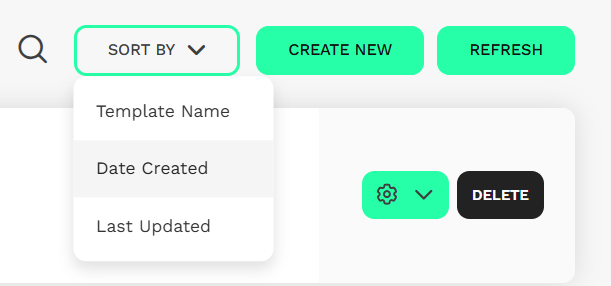
Templates can be sorted by:
- Template Name – Alphabetically for easy reference.
- Date Created – View your newest or oldest templates first.
- Last Updated – Quickly find the templates you’ve recently edited.
This makes it easier to manage multiple templates and quickly locate the one you’d like to edit or use for your campaign.
To start building your Template, click CREATE NEW.
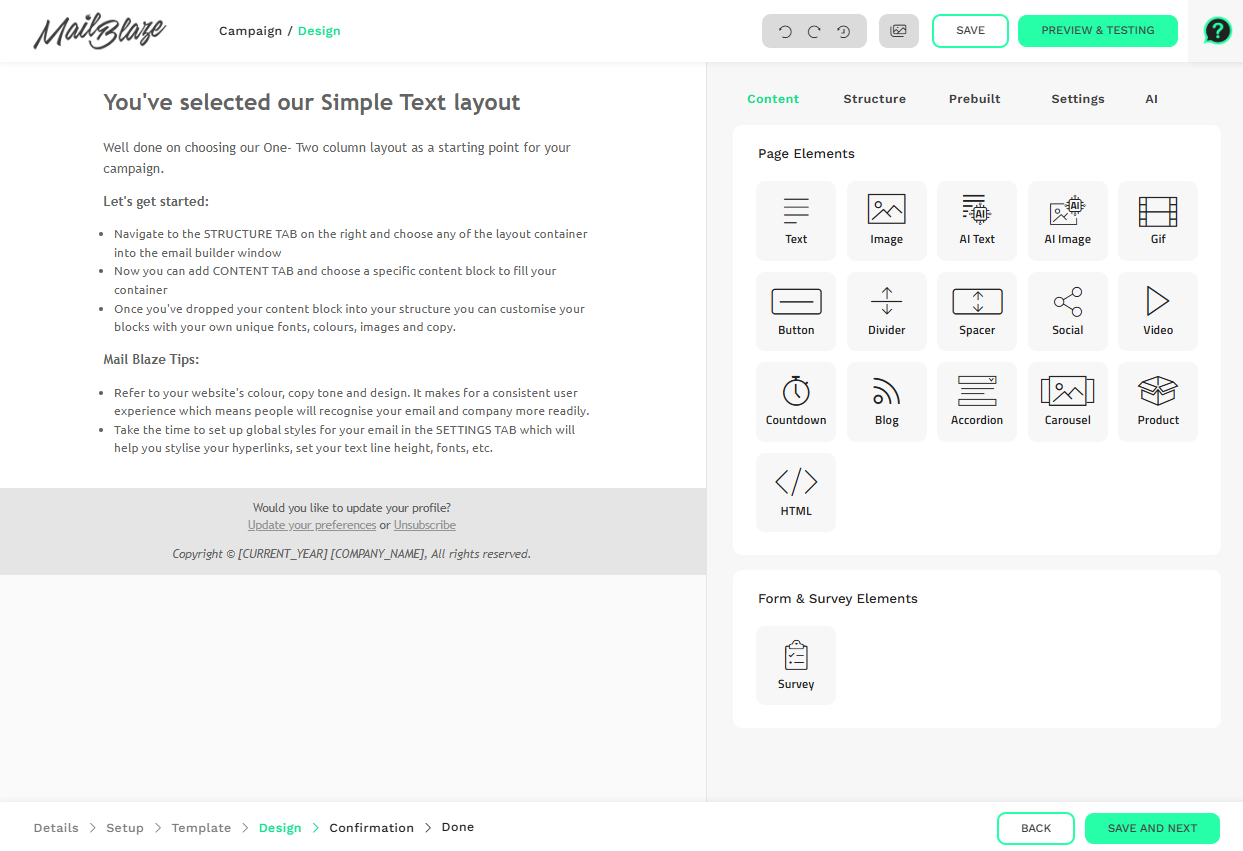
The sidebar panel contains 5 tabs:
CONTENT: Contains all content elements that can be dragged into the structure sections in the builder window.
STRUCTURE: Provides a list of layout sections that act as containers for your content elements. There is a variety of 1, 2, 3 and 4 column layouts available to organise and display your content. This makes it easy to organise your content.
PREBUILT: Allows you to import structures from another template/campaign. This helps you save time as you don’t have to create the entire email layout. It also ensures a consistent look for your email campaigns, strengthening your brand identity.
SETTINGS: Allows you to specify overall settings such as page and text styles. Setting your preferred styles here will make it easier to keep the design consistent across your template.
AI: Enables you to easily create compelling email content and images using our AI Content Blocks directly within the Mail Blaze platform. With the help of AI, you can generate creative ideas, designs, and content, enhancing the effectiveness of your campaigns. You can find out how to use our AI Content Blocks here.
USING STRUCTURE BLOCKS
Let’s start by clicking on the STRUCTURE tab and dragging a structure block in the template window as illustrated below.
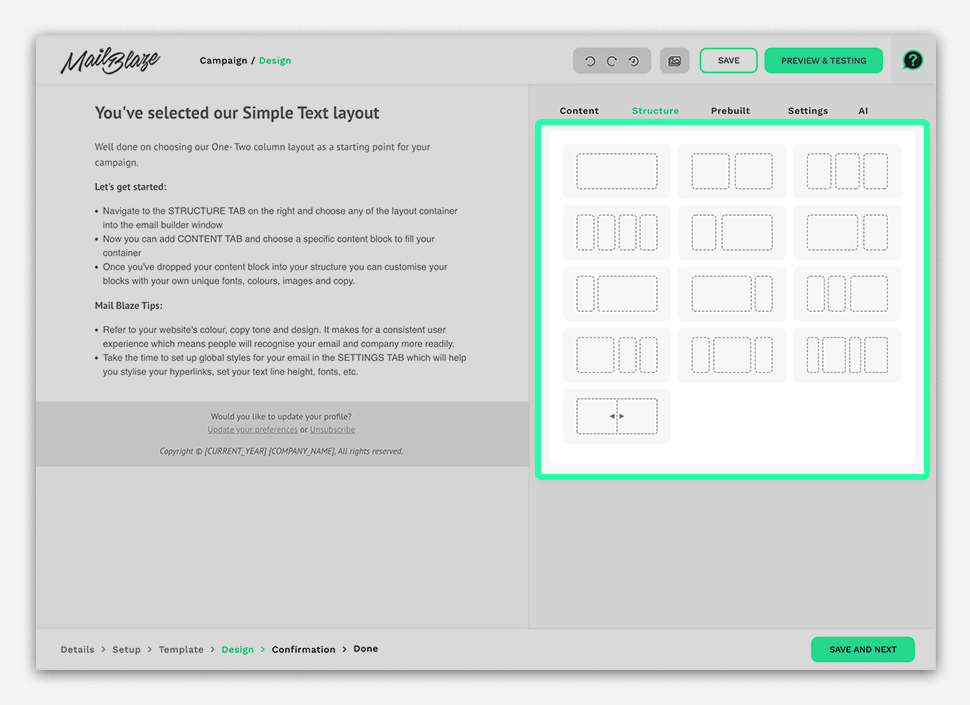
You have a variety of 1, 2, 3 and 4 column layouts to choose from. Single column layouts are great for large images and paragraphs, while multi-column layouts can be great for product listings and images that have complimentary text alongside it.
Once you’ve added your structure block, click on it (outside of the content element or space for the content element) and you should see a number of settings appear in the options panel.
customise it by selecting a wide or narrow layout, uploading a background colour or image if you’d like or by selecting a border.
NOTE: Not all email clients support background images
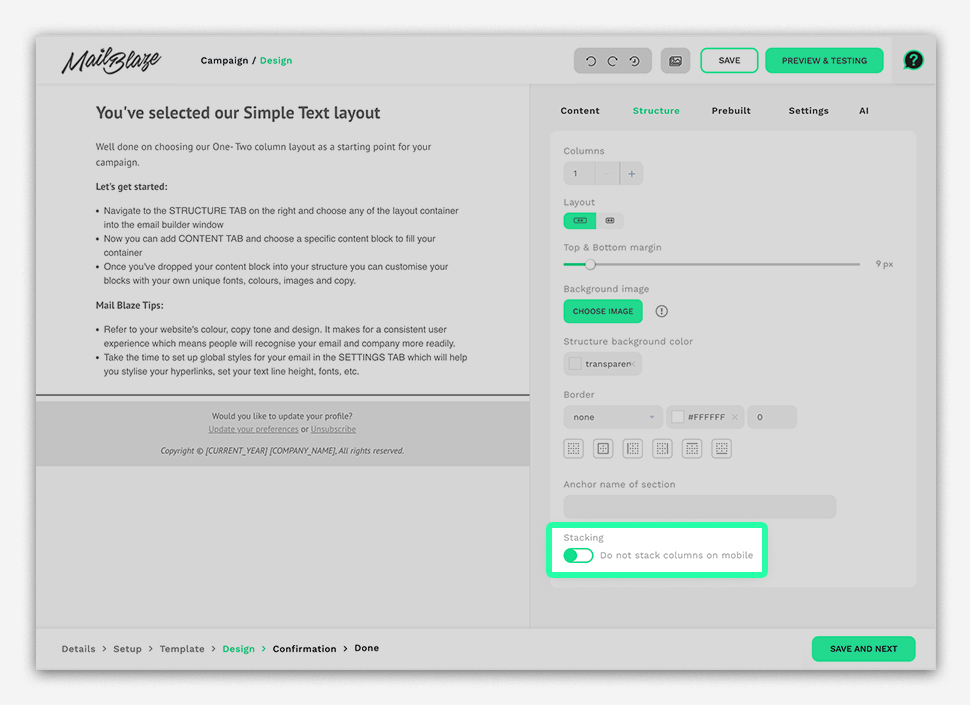
You’ll see an option for stacking on mobile. What this means is that if you have a multiple-column layout, you can choose whether content elements display underneath or next to each other when viewed on a mobile screen.
There are many ways to use these layouts to create beautiful emails. Our template gallery showcases many types and styles of layouts, so feel free to use them for your own templates or to browse through them for inspiration.
HOW TO USE CONTENT ELEMENTS
- Select the CONTENT tab and drag a content element into the preview window.
- Select the new element in the preview window to make any adjustments in the editing panel.
- Use the editing panel to customise the content.
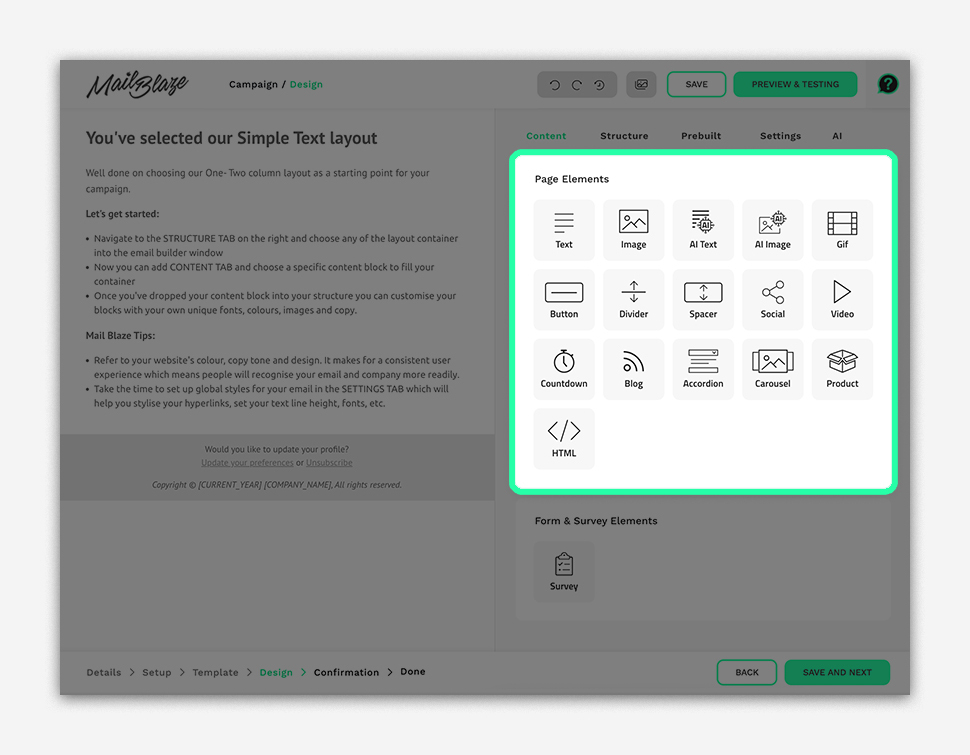
CONTENT BLOCKS
Take a look at all the content elements the builder has to offer. Using the content elements gives you the freedom to create beautiful emails easily. Each content element has a number of options available to customise your campaign and to represent your unique message.
We have 16 dedicated context blocks that our clients can use. Below you can find a brief explanation of what’s possible for each of them.
TEXT
Text elements provide a text editor that appears in the editing panel, allowing you to write and style your headings, paragraphs and links according to your needs.
NOTE: To make things easier, specify your text styles in your SETTINGS tab first so that you don’t need to repeat your styles for every new text element.
Select the type of text, such as headings or paragraphs, using the FORMAT option.
Style your text your way. You can make your text bold, underline it or change the size or apply other options as you need.
To add a link to a certain part of your text, highlight the text that you’d like to link and click on the LINK icon. A popup window will appear where you can select the link type, protocol and URL in the fields provided.
Click the SOURCE button to view the generated HTML for the block of text. You can even edit the HTML directly if you want to.
Click the INSERT button to add dynamic tags such as First Name (FNAME), email (EMAIL) or other available options from the dropdown menu. If your list has custom fields, then the corresponding tag will also be available to include in your template.
If you have already added your text, and would like to style it using the above options, simply highlight the text and use the available options.
IMAGES
Images are a great way to include some visual branding and content in your templates. Drag an image element into the preview window and click on the placeholder image to bring up the file manager. Upload or browse for the image that you’d like to add.
Link the image by adding the URL into the Image Link field. This is a great way to ensure your users can get to your website.
Should an image not display for some reason when the page opens, it’s good practice to add alternative text (alternative text should describe the image you are adding), this way a subscriber would know what the image would have visualised.
Use the other options to customise the style of your image.
AI TEXT Our AI Text content block allows you to create text with the power of AI. Using your well-thought out prompts the AI text content block generates the text content you request for use in your campaign, if you aren’t happy with the first results, you can request revisions easily.
AI IMAGE Our AI Image content block allows you to create AI generated images. Using your well-thought out prompts the AI image content block generates the imagery you request in a variety of styles you can choose from, if you aren’t happy with the first results, you can request revisions easily. The images are stored in the image library for you.
GIF Want to have some fun? You can add a GIF to your email by dragging the GIF element into the preview window, use the default animation and search for a GIF in the SEARCH GIF field in the editing panel.
BUTTONS Buttons are a way to show your subscriber what you want them to do next. Although you could use a link, it’s a powerful way to draw the attention to an action you want to emphasise.
Adding a button is simple, drag the button widget into the preview window, click on it to bring up the editing panel and customise the button to suit your desired style. You can change the button text and add a URL in the link field. You can also customise the colour, text size and alignment of a button to make it compliment your email or form.
DIVIDERS Separating two form elements using a divider draws a distinct line between them. Dividers are useful to use when you want to keep your elements organised.
SPACER Need to create some spacing between page elements? Simply drag the SPACER widget into that part of your form. You can adjust the size of the spacer by clicking on the spacing area in the preview window and dragging the spacer height slider in the editing panel to your desired height.
SOCIAL Get social and add your social media links to your email by dragging the SOCIAL widget into the preview window and click on the icons to bring up the editing panel. Select the icon style that best fits with your template design. customise them further by specifying the alignment, size and margin.
Don’t forget to add the links to your social media pages by clicking the edit icon on the right-hand side. You can change the order of the icons by moving the icon to the position you want it to display.
You don’t have to add all the icons provided if you don’t use all the platforms. Simply click the icon you don’t want and delete it.
VIDEO A video widget creates an image of a video’s thumbnail frame. Both Youtube and Vimeo are supported.
Simply drag the VIDEO element into the preview window and click on it. Paste the video link into the field provided and style the image using the options available.
COUNTDOWN The countdown timer content block gives you the chance to add a countdown timer to your email campaign that counts down to a time you set. Please note this is an interactive feature and is not supported by all email clients.
BLOG If you have an RSS feed, you can use the Blog content block to connect to it and also customise the way the feed appears in your email campaigns.
ACCORDION The accordion content block allows you to create accordions to hide information (especially useful for long emails) just like you would on your website. Please note this is an interactive feature and is not supported by all email clients.
CAROUSEL The carousel content block allows you to create image carousels (like you would on your website) within your email campaigns. Please note this is an interactive feature and is not supported by all email clients.
PRODUCT The product content block was specifically designed for ecommerce stores to use. When you’ve connected your chosen products via our API, you’ll be able to select these products and insert them into your campaign seamlessly. There are various configurations for the data that you can display using the product content block, based on your data and needs.
HTML Are you a code wizard? Adding an HTML element allows you to add custom code to a section of your email. It’s important to be comfortable using code when choosing to apply this element as it can have unintended results if not tested properly.
SETTINGS
Customising your settings section is a great way to ensure your content can easily stay consistent, especially with your paragraphs and buttons.
You can specify your background colour, fonts, text colours, button and link styles plus more in the settings tab which means you don’t have to customise these elements individually in the text editor every time.
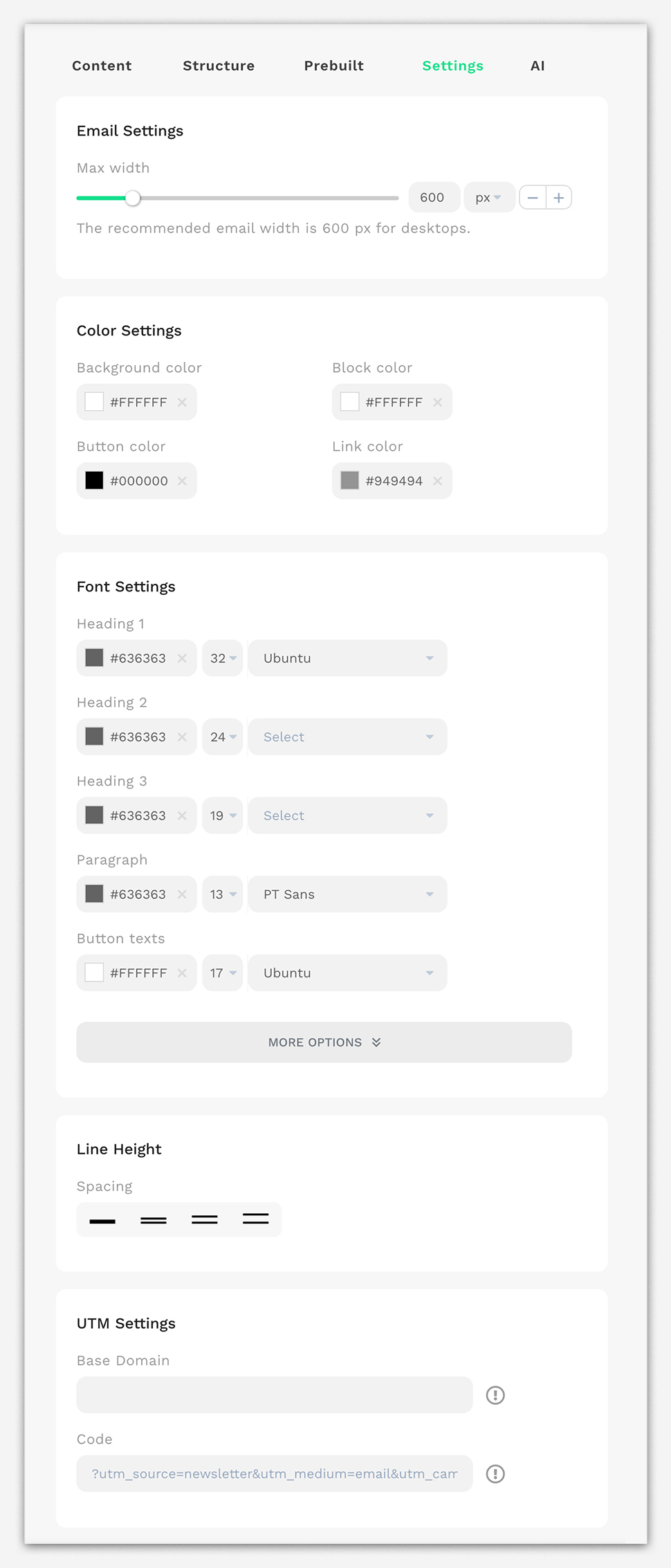
MAX WIDTH It is recommended to keep your template 600px as this is the optimal width to use for both large screens and mobile devices. You do have the option to make it wider if you have content that needs a little extra space, but a maximum of 700px is encouraged.
COLOR SETTINGS Set your background, block, button and link colors.
FONT SETTINGS Select your color, size and font family for your headings, paragraphs and buttons. By default your text will be a paragraph, but feel free to use headings in your text elements to specify different sections in your template. Complimentary buttons are a great way to get subscribers to click a link to your website.
NOTE: Although uploading a web font is available, we highly recommend using the fonts present in the platform due to the limited support for various web fonts by email clients.
LINE HEIGHT Line height is the spacing in between the top and bottom of your text.
UTM SETTINGS A UTM link can be incorporated into your campaign that connects your data to your Google Analytics account. If you want to gain insights into the behaviour and actions of your subscribers after they receive the campaigns, this proves to be a highly effective method. You can find more information about UTM’s here. Please note this does not create unique UTM links per content element.
PREVIEW AND TESTING
Now that you have put your template together, it’s time to make sure that it looks as intended when a subscriber receives it in their inbox. Select PREVIEW AND TESTING.
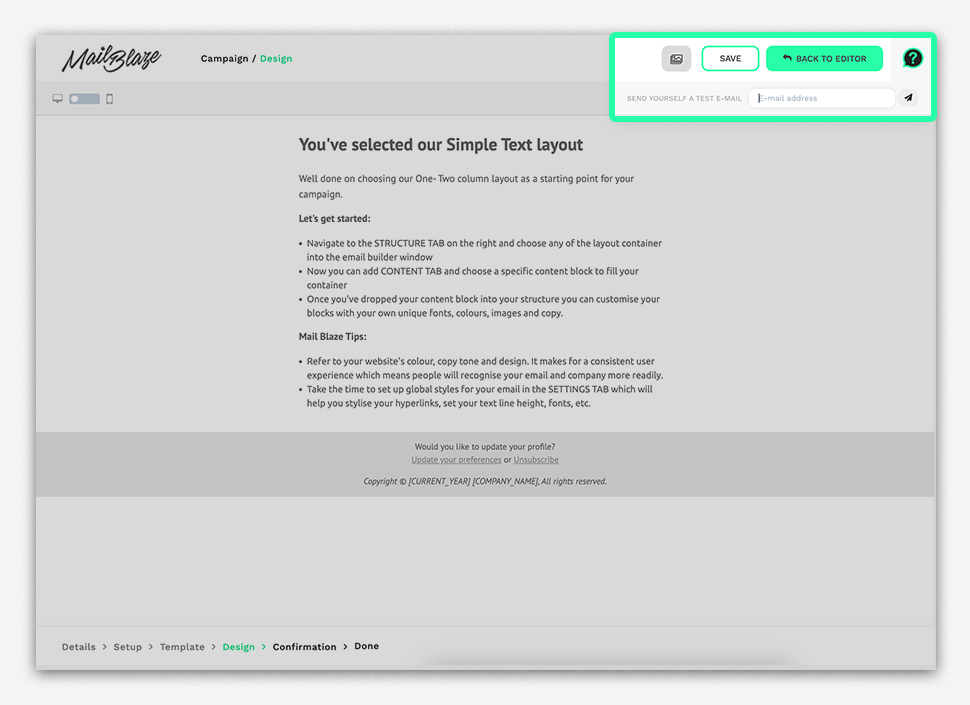
You’ll see your template in the preview window. Enter your email address in the text field in the top right corner and send yourself a test mail.
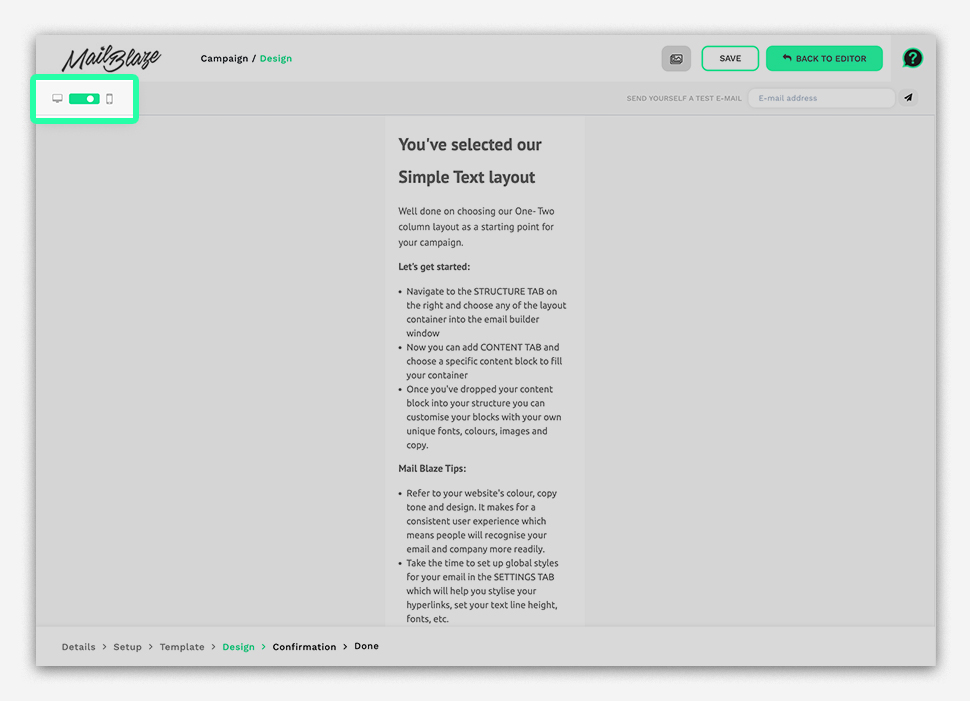
To view the mobile version of your template, click the toggle option in the top left corner to the mobile icon.
Select BACK TO EDITOR to go back to the template builder.
Once you’re happy with your template and are ready to send your campaign out, select SAVE AND NEXT.
Creating effective email templates is simple with the right structure and settings in place.
Always preview and test your template before sending to ensure everything displays correctly. Once you're happy, schedule or send your campaign and connect with your audience.