


Adding Survey to your Campaign
Once you’ve created a survey, the next step is to share it with your audience through an email campaign. This allows your subscribers to access and complete the survey straight from the email, making the process simple and increasing your response rate.
In this guide, we’ll walk you through how to insert your survey into your email campaign using the drag-and-drop editor.
Step 1
Open your email campaign and ensure you’re in the email editor of the platform.
Step 2
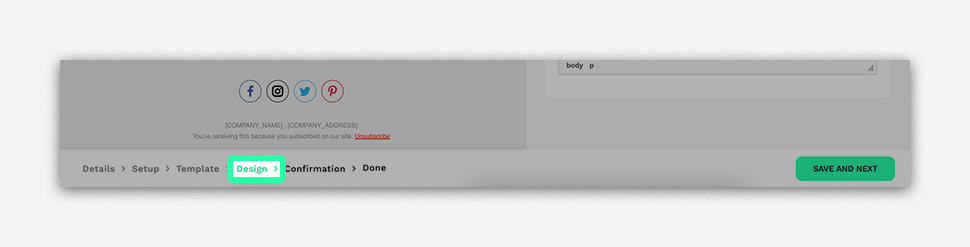
You can easily access the email editor by using the breadcrumb menu as per the below image by clicking on DESIGN.
ADDING AN IN-EMAIL SURVEY
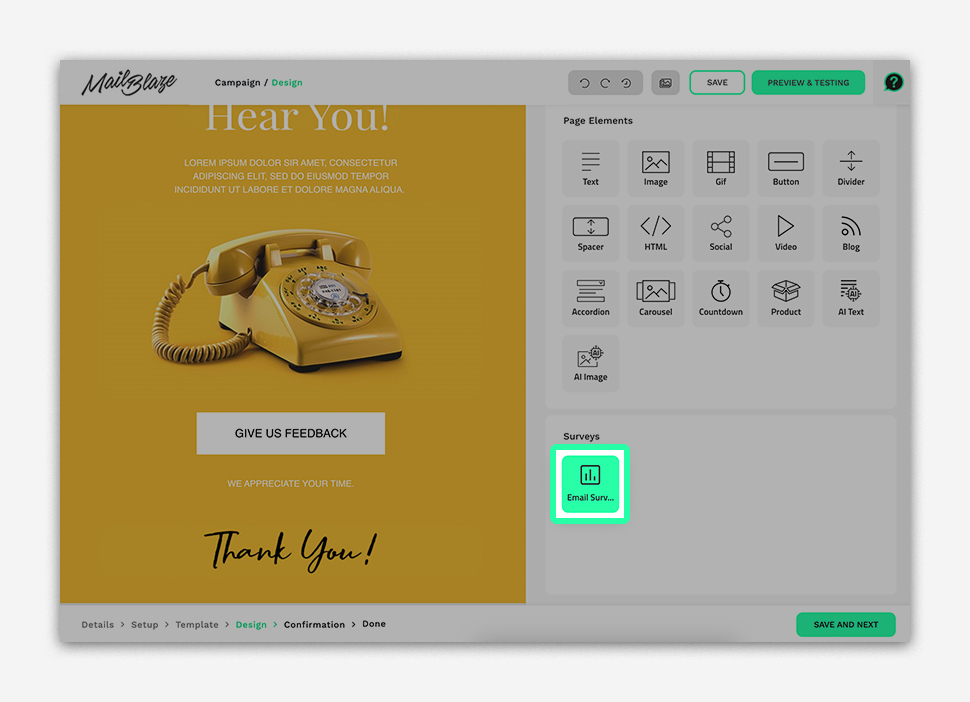
You’ll find that your in-email surveys are already added to the content tab of the editor.
Just like you’d drag the other content blocks into a structure, you can drag and drop the survey you created where it is needed.
PLEASE NOTE: Survey changes need to be made in the survey section of the platform.
ADDING A WEB SURVEY
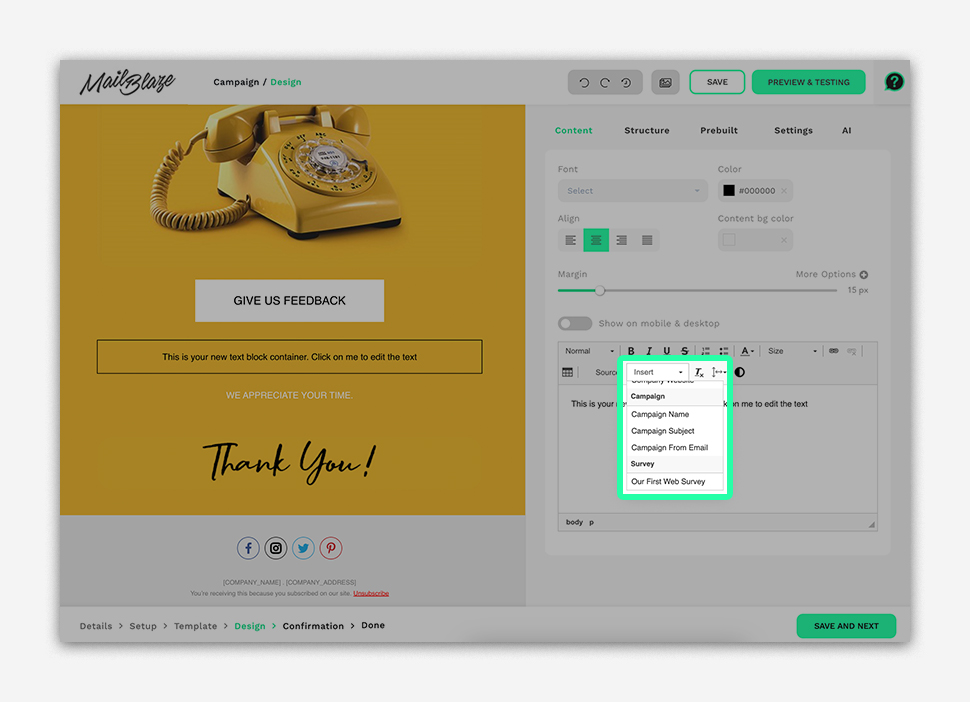
To add a link directing people to your web-based survey, you can click on INSERT in the text editor and scroll down to SURVEYS and the selected survey link will be added for you.
If you’d like to add the survey to a BUTTON: Take the link you created and add it to a button in your campaign.
If you’d like to add the survey to a HYPERLINK: Select the text you’d like to link to and click on INSERT in the text editor and scroll down to SURVEYS and the selected survey link will be added to your text.
PLEASE NOTE: Survey changes need to be made in the survey section of the platform.
To learn how to create a survey, please read more about How To Create A Survey.