


How to Enable Two-Factor Authentication (2FA)
One of the most effective ways to protect your account from unauthorised access is utilising Two-Factor Authentication (2FA). This adds an extra layer of security by requiring a verification code as well as a password entered to log into your Mail Blaze account. Even if your password became compromised, someone would not be able access to your account if they don't have the 2FA verification code they need.
Below we've outlined the steps you need to take to complete 2FA on your account. Please keep your mobile phone close by as you'll need it for 2FA.
Setting up Two-Factor Authentication
-
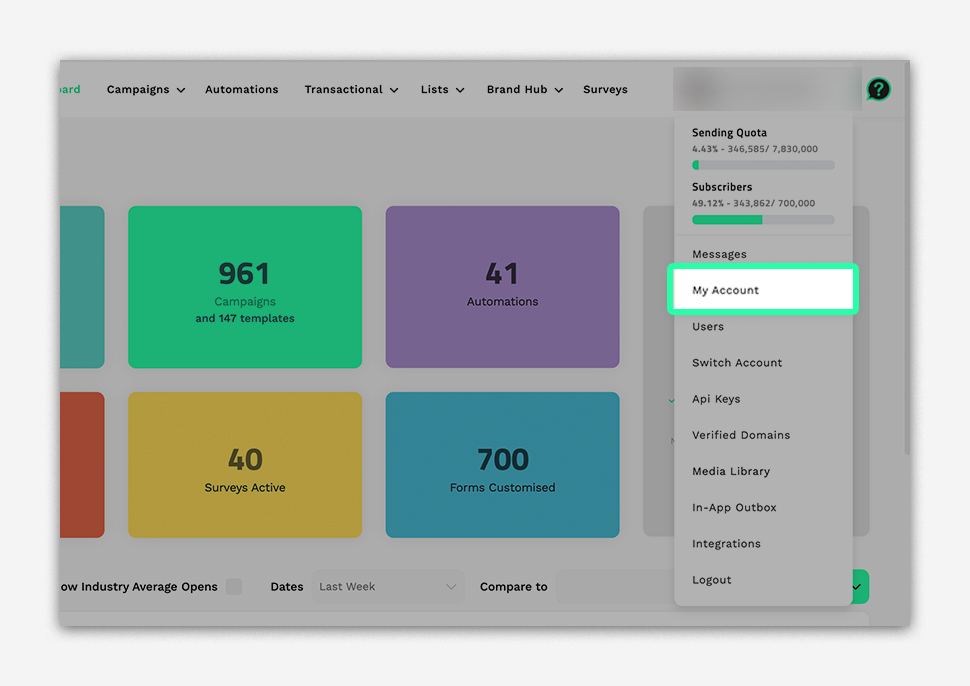
Once you've logged into your account, you will click on the dropdown menu next to your PROFILE in the top-right corner of the dashboard.
-
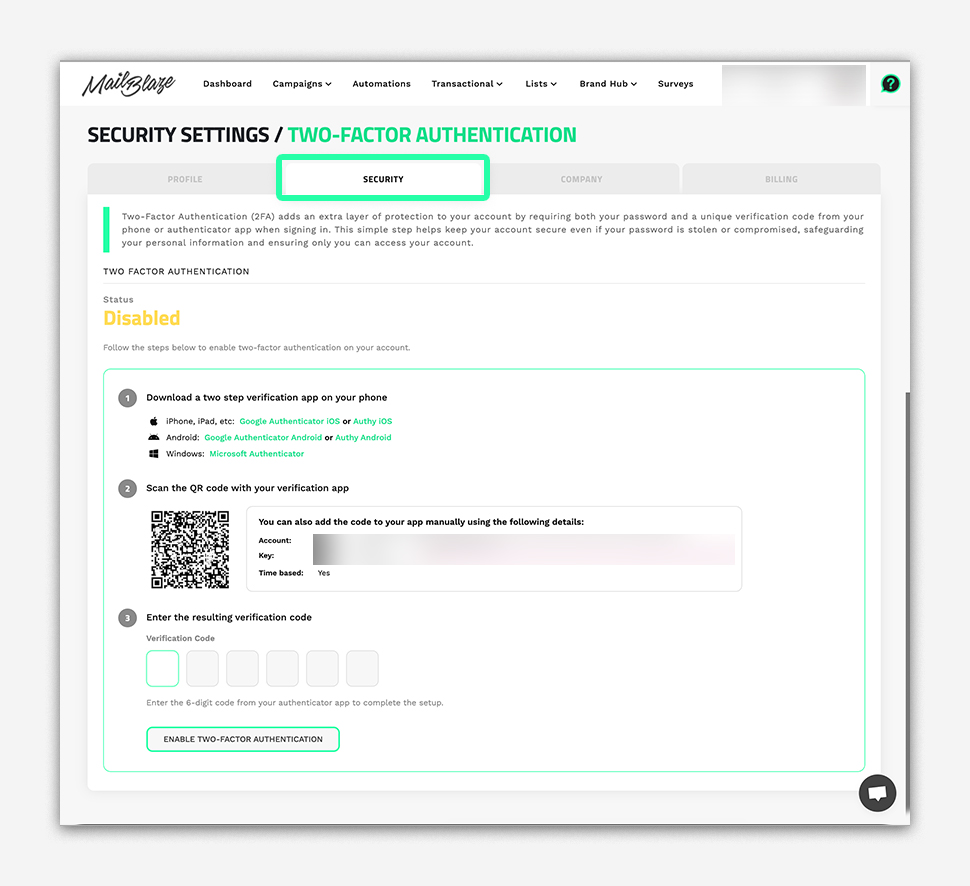
Now you will click on MY ACCOUNT from the menu and then navigate to the SECURITY tab.
-
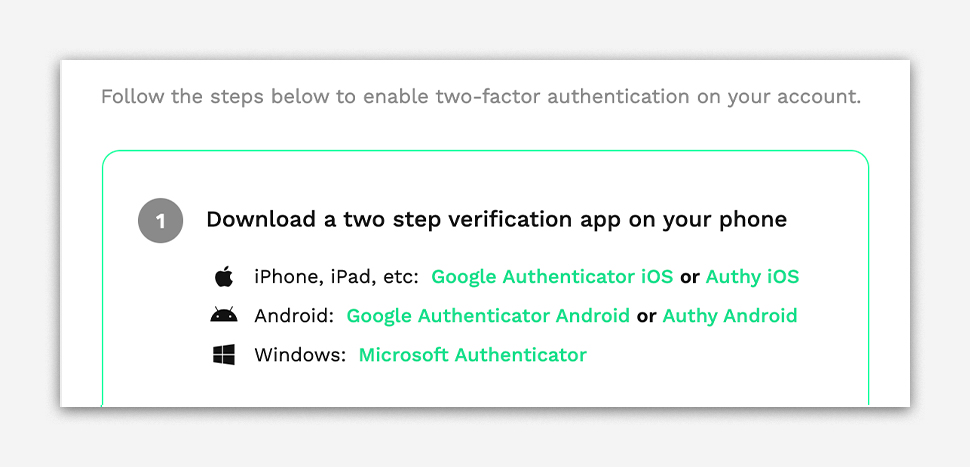
You will see that the platform prompts you to download a two-step verification app (such as Google Authenticator or Authy) on your mobile device.
- Once you've got the app download onto your mobile phone, you will use the verification app to scan the QR CODE displayed on your screen.
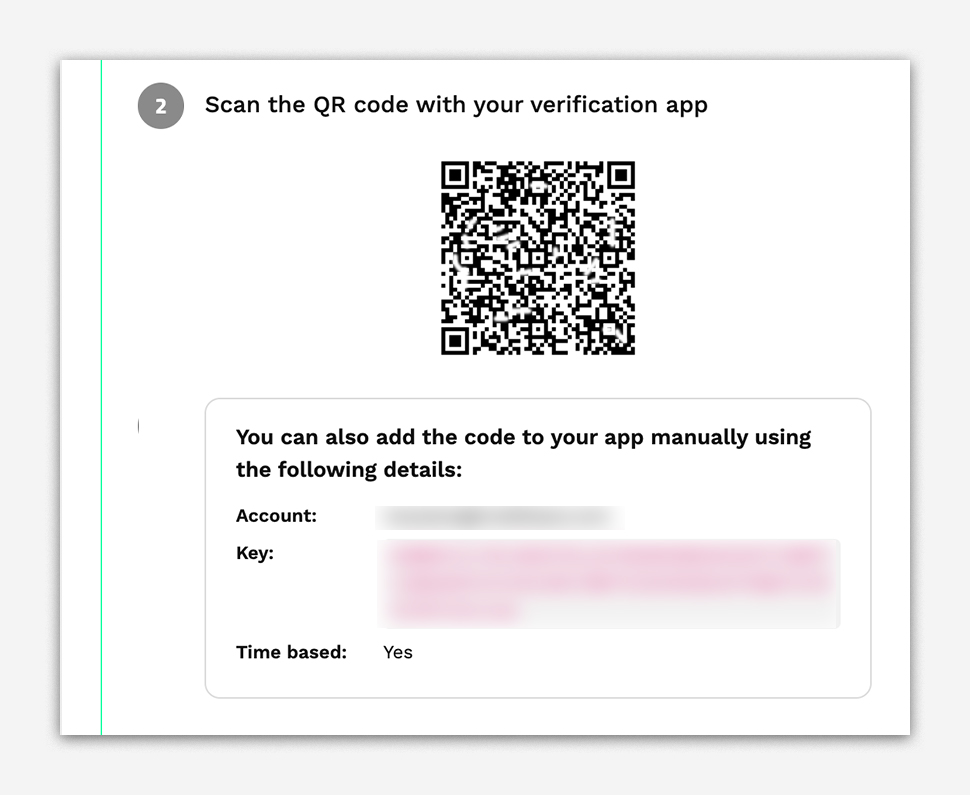
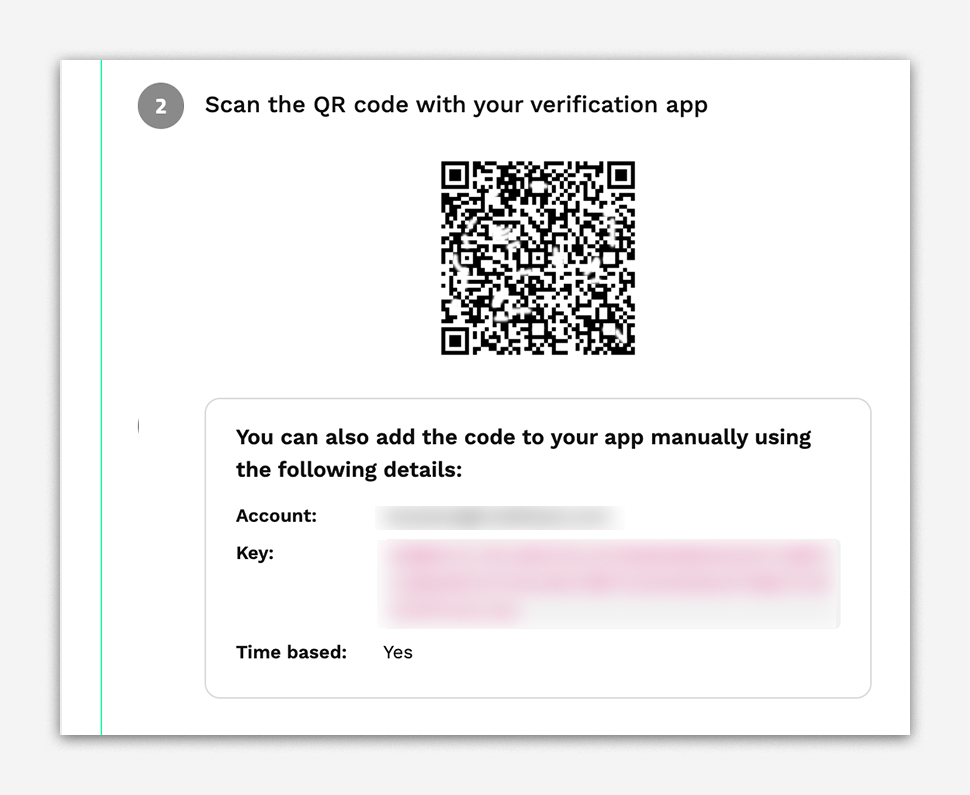
- You should now see a code being generated by the app. Generally it will have a time limitation to it. Please enter the verification code as needed.
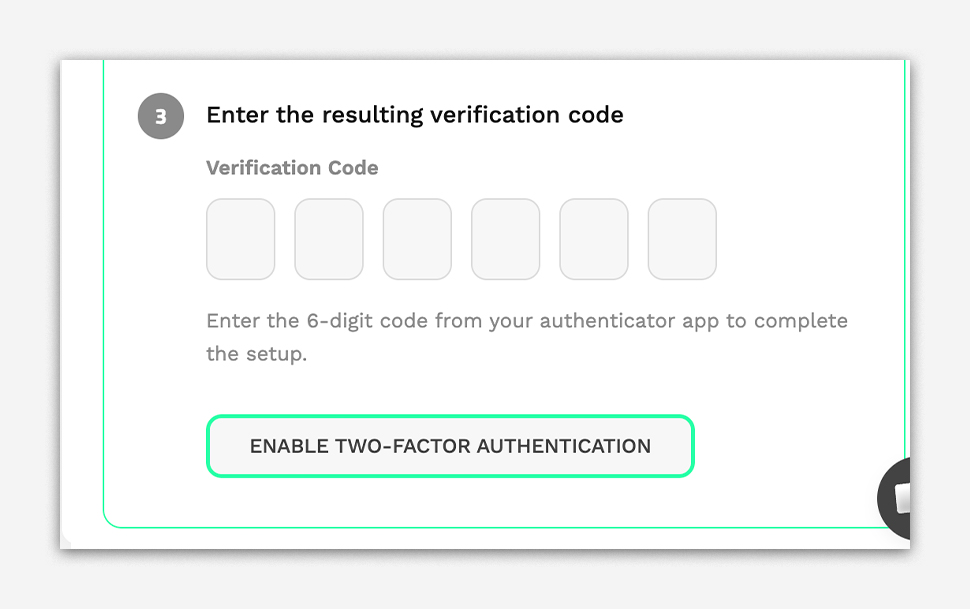
- Now you can click on ENABLE TWO-FACTOR AUTHENTICATION to complete the setup.
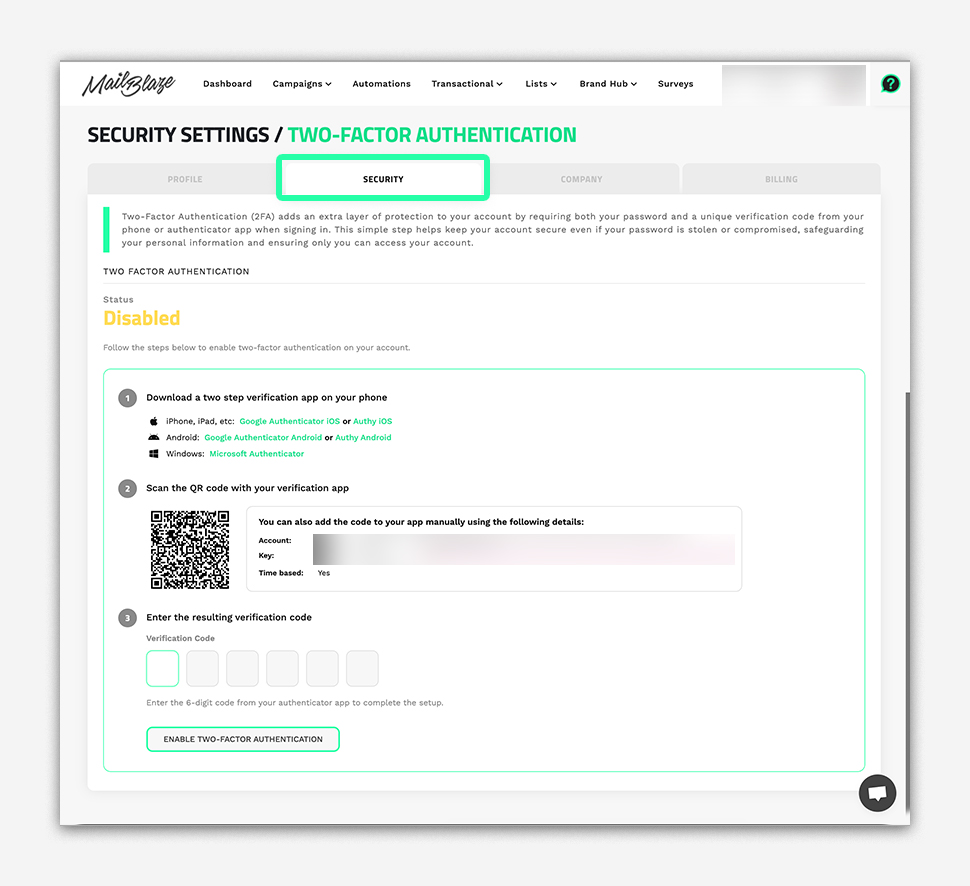
Going forward, you’ll now be prompted to enter a unique verification code from the app, in addition to your password each time you log in. This additional step significantly reduces the risk of unauthorsed access and helps keep your account safe.
We strongly recommend enabling 2FA to enhance your account security. If you experience any issues during setup or have questions, our support team is always here to help.
PLEASE NOTE: All Mail Blaze users, on all account roles can enable Two-Factor Authentication on their own profiles.