


SUPPORT ARTICLE | 0 minute read
How to Merge Your List
Want to combine two lists in your account? Merging a lists helps you to do that and ensure you’re not sending the same subscriber a campaign more than once. Let’s jump into it.
PLEASE NOTE: Merging a list creates a brand new list in your account that has it’s own unique subscription/unsubscription and profile journey
Step 1
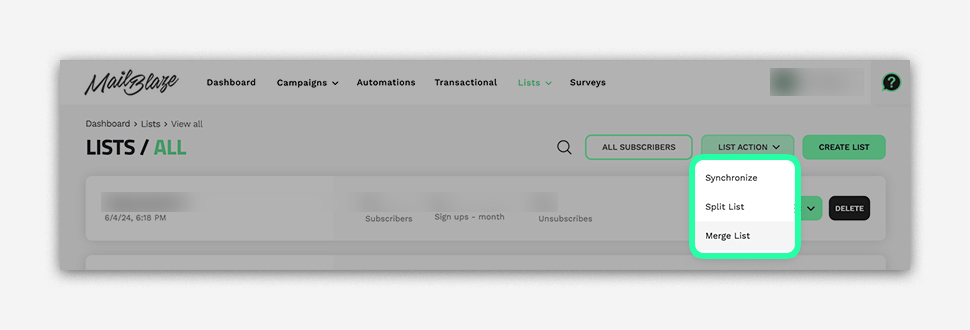
Go to LISTS > LISTS again and click LIST ACTION, then choose MERGE LIST.
Step 2
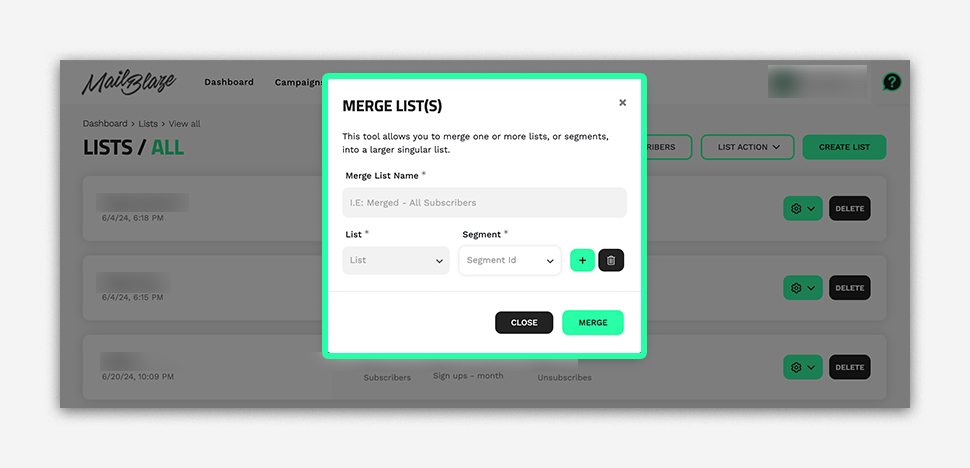
Add the MERGE LIST NAME.
Step 3
Select the LIST or SEGMENT, click the + icon to add more lists or segments, and then click the MERGE BUTTON once you have included all the lists or segments you wish to combine.